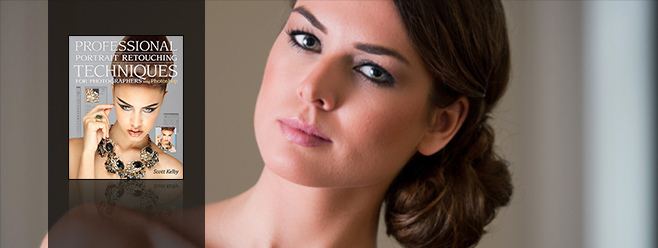
EffectsPhotoshop Softening Skin & Adding Texture Back In This one takes a few steps, but it’s not hard at all. In fact, it’s simple, so don’t let the number of steps throw you. ... February 9, 2015 1
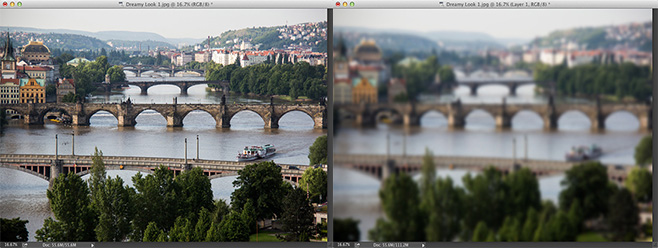
EffectsPhotoshop Creating a Dreamy Focus Effect This is an effect I get asked about a lot, because I use it a lot. The particular thing I get asked is, “How do ... January 30, 2015 0
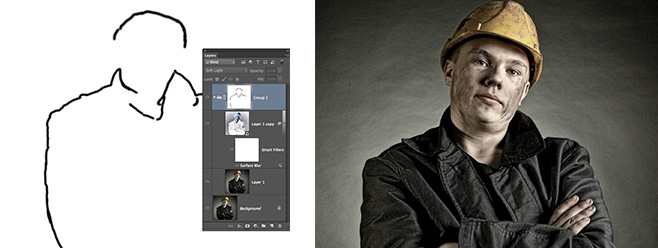
EffectsPhotoshop Sleek Chiseled Portrait Effect In my quest for the Holy Grail of portrait-retouching effects, I sought a look that was crisp and chiseled, yet sleek and refined. This couldn't ... January 29, 2015 0
EffectsPhotographyPhotoshop Using the Path Blur in Photoshop Path Blur is the fourth of five blur filters in the Blur Gallery available in Photoshop CC and later. It enables you to add motion ... January 15, 2015 0
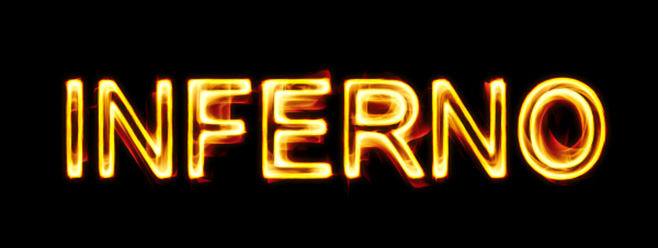
EffectsPhotoshopTools Scorched Neon Effect Using the New Flame Filter in Photoshop Adobe keeps slipping fun new features into each new release of Photoshop CC. In a recent release, they quietly unveiled a Flame filter that can ... January 14, 2015 0
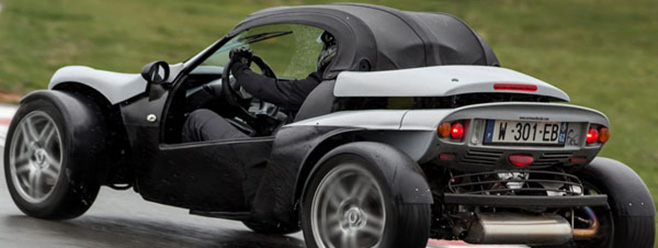
EffectsPhotographyPhotoshop Using the Spin Blur in Photoshop CC The Spin Blur is the last of the five blur filters in the Blur Gallery available in Photoshop CC and later. It enables you to ... January 12, 2015 0
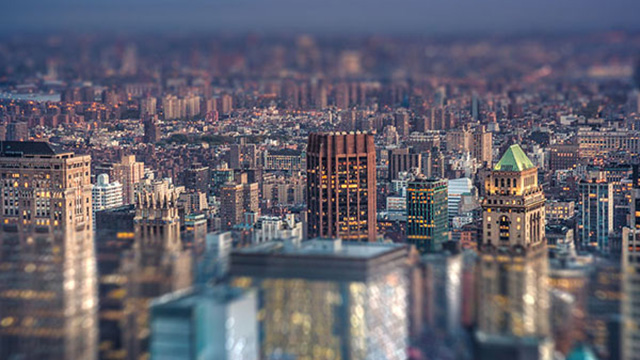
EffectsPhotographyPhotoshop Using the Tilt-Shift Blur in Photoshop The Tilt-Shift Blur is the third of the five blur filters in the Blur Gallery available in Photoshop CC and later, but it was first ... January 9, 2015 1
EffectsPhotoshopText Editable Backgrounds and Type in Photoshop In this tutorial, Daniel shows you how to create a simple, editable background to showcase a text-based logo. You’ll learn how to stylize the text, ... Aaron Westgate December 23, 2014 0