Sponsored by the National Association of Photoshop Professionals. Learn More
As with most things in Photoshop, there are a thousand ways to do the same thing. Here lies what I truly believe to be the quickest and easiest way to … Continue reading
Have you ever wanted to float a piece of text behind a portion of an image? It’s really easy to do using layer masks. Today I’m going to show you … Continue reading
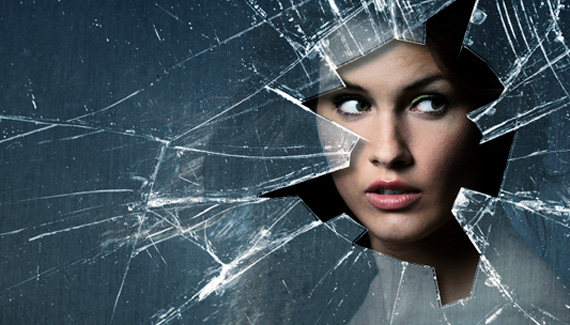
Does the thought of isolating (also referred to as “knocking out”) a person in a photo with big hair fill you with dread? Never fear for the Extract filter is … Continue reading
Jack London once said “Show me a man with a tattoo and I’ll show you a man with an interesting past.” With my needle phobia, the only way I’ll ever … Continue reading
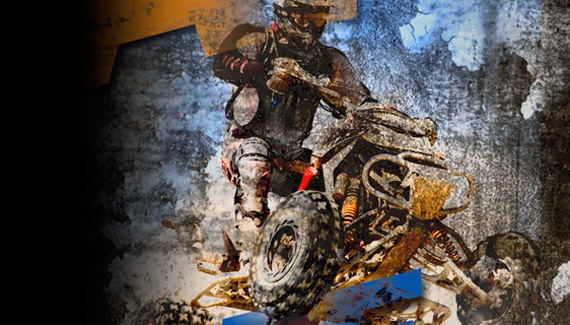
Continuing on with the Photos within Type tutorial series, here’s another fun effect to create: grungy type. It’s often used on movie posters. To create the effect, you need a … Continue reading
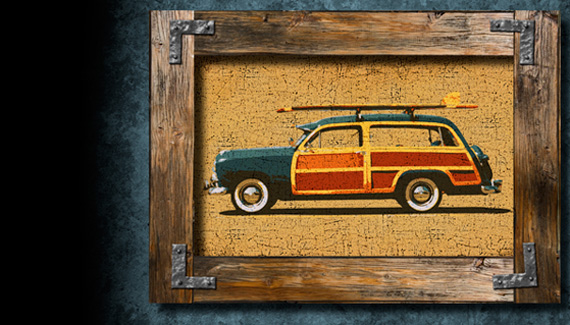
Photoshop’s Replace Color adjustment is a quick and efficient way to swap one color for another. In this tutorial, we’ll change the blue of the sky and the Aloha logo … Continue reading
Photoshop’s Unsharp Mask is a great way to add a little sparkle to eyes and a smile-but how do you avoid sharpening the skin and bringing out the wrinkles? Wrangle … Continue reading
The calm and peaceful waters are ruining your image and you want to stir things up a bit. Here’s an easy way to add pond ripples to your image. STEP … Continue reading
Serigraphs are silkscreen prints that, in the hands of artists such as Andy Warhol, Michael Schwab and Antonio Reboiro, can be exciting, colorful, high-contrast images. We’ll use Photoshop to create … Continue reading
Ever wonder how designers are able to place an image inside text? It takes *years* of practice. Kidding. They do it by creating a clipping group, and it takes 5 … Continue reading
Pages: 1 2 3 4 5 6 7 8 9 10 11 12 13 14 15 16 17 18 19 20 21 22 23 24 25 26 27 28 29 30 31 32 33 34 35 36
Use Photoshop CS6 to create selective softening effects using the new on-screen Blur Filters. Mix and match among the three filters for a variety of depth-of-field and tilt-shift effects. Continue reading
This week Corey shows you how to take simple vector shapes and gives them life with 3D in Photoshop CS6. Using simple extrusions and lighting effects you can achieve a level of hyper-realism you never could before. Continue reading
Make your subject of your photograph stand out using dark edge vignettes. Continue reading
Lesa explores the new Content Aware Move tool in Photoshop CS6. Continue reading
Photo Retouch
Extended Definition ProcessingIf you have a multilayer composition and you
want to apply an effect to all the layers at once, don't flatten the layers--use a composite layer instead. Hide the layers you want excluded, and press Shift-Command-Option-E (PC: Shift-Ctrl-Alt-E). A new layer will be created at the top containing a merged copy of all the visible layers.
Another option is to create a new layer at the top of the stack and make it active. Command-click (PC: Ctrl-click) each layer you want to include to make those layers active, as well. Press Option-Command-E (PC: Alt-Ctrl-E).
by Colin Smith