CloudFlare provides web performance and security solutions, enhancing site speed and protecting against threats.
Service URL: developers.cloudflare.com (opens in a new window)
cf_ob_info
The cf_ob_info cookie provides information on: The HTTP Status Code returned by the origin web server. The Ray ID of the original failed request. The data center serving the traffic
session
__cfseq
Sequence rules uses cookies to track the order of requests a user has made and the time between requests and makes them available via Cloudflare Rules. This allows you to write rules that match valid or invalid sequences. The specific cookies used to validate sequences are called sequence cookies.
session
cf_clearance
Whether a CAPTCHA or Javascript challenge has been solved.
session
_cfuvid
The _cfuvid cookie is only set when a site uses this option in a Rate Limiting Rule, and is only used to allow the Cloudflare WAF to distinguish individual users who share the same IP address.
session
__cflb
When enabling session affinity with Cloudflare Load Balancer, Cloudflare sets a __cflb cookie with a unique value on the first response to the requesting client. Cloudflare routes future requests to the same origin, optimizing network resource usage. In the event of a failover, Cloudflare sets a new __cflb cookie to direct future requests to the failover pool.
session
__cf_bm
Cloudflare's bot products identify and mitigate automated traffic to protect your site from bad bots. Cloudflare places the __cf_bm cookie on End User devices that access Customer sites that are protected by Bot Management or Bot Fight Mode. The __cf_bm cookie is necessary for the proper functioning of these bot solutions.
session
__cfruid
Used by the content network, Cloudflare, to identify trusted web traffic.
session
cf_chl_rc_m
These cookies are for internal use which allows Cloudflare to identify production issues on clients.
session
cf_chl_rc_ni
These cookies are for internal use which allows Cloudflare to identify production issues on clients.
session
cf_chl_rc_i
These cookies are for internal use which allows Cloudflare to identify production issues on clients.
session
__cfwaitingroom
The __cfwaitingroom cookie is only used to track visitors that access a waiting room enabled host and path combination for a zone. Visitors using a browser that does not accept cookies cannot visit the host and path combination while the waiting room is active.
session
cf_use_ob
The cf_use_ob cookie informs Cloudflare to fetch the requested resource from the Always Online cache on the designated port. Applicable values are: 0, 80, and 443. The cf_ob_info and cf_use_ob cookies are persistent cookies that expire after 30 seconds.
session



Thanks Corey
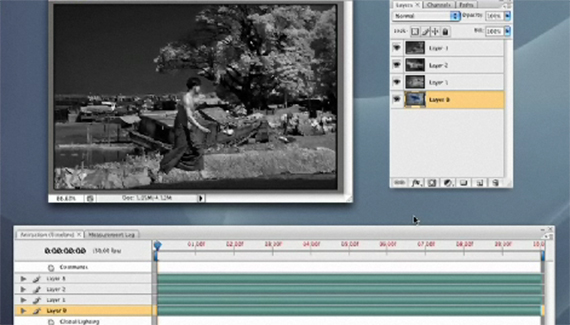
Great, I just spent an hour creating my animation but you didnt say what format to save it in. I tried GIF but that didnt work. grrr.
Brilliant work Corey works like a dream!
Yeah! I had the same trouble. Spent an hour creating the animation but don’t know how to put it into Dreamweaver.
Cheers, helped a lot.
Great, worked first time but still no idea how to transfer it to Dreamweaver – any ideas anyone?
what kind of file will i save it??
Thank you for your video tutorial Corey
hi corey,
I watched your video on creating slideshows using photoshop cs3 but i just can’t seem to make sense of your comment about “holding down the shift key”. Here’s the deal….I have several imagemy files open just like you demonstrated. So my question is how do i get all of the images into the layer section so they all show the way you have them? I’m confused!
Heeellllpppp!!!!
Rosario
Thank you so much for this! You dont know how many times i have searched youtube, google, forums on how to do what you did in ONE video! You are so awesome! Thank you!
For anyone who i still having problems saving it you need to save it as a gif, go to “File” then “Save for Web and Devices” I made one using cs4 but its the same! THANK YOU AGAIN!
Oh i have another problem, when i made my version to this the quality of the picture is not very good. Any help?
http://i428.photobucket.com/albums/qq7/Darth0001/mysiganimated2.gif
Thanks alot!
Thanks a bunch Cory. I blew my brains out with another video trying to do exactly this. Your video is clear and simple and just what I needed today.
Thanks again,
I can’t figure out how to do this in CS4. The animation toolbar gives me the pictures in frames instead of the bar thingy
Krista, I had the same problem. Did you happen to figure it out?
Do the photos need to be all the same size? I am trying to use some vertical and some horizontal photos and when they transition to the next you can see the one before it in the background.
“David said on — May 7, 2008 @ 6:00 pm
Great, I just spent an hour creating my animation but you didnt say what format to save it in. I tried GIF but that didnt work. grrr.”
David (even though you said this over a year ago),
You would save the file using File|Save for Web & Devices. Then a dialog box will pop up and you choose the settings you want and click save. Save it using .gif
Thats what I do and it works everytime. Hope that helps anyone with the same problem in the future.
I noticed some were asking how to save this. Instead of saving it, why not try exporting it. This will give you different options that may assist with your problem.
For those asking how to save this, go to:
-the File menu
-select “Save for Web & Devices”
All of your save options will be listed in the window.
Thank you very much for this tutorial. For everyone who had problems saving it, use:
Save for web and devices
then press Save at right top courner..
this time it should work!
Easy to follow procedures, works great! The file size came out to be quite big, so I reduced the fps from 30 (1.3Mb) to 5 (300Kb). Also I find that with the black frame at the beginning, the transition as it loops around does not look nice. Hiding it seems to work much better, Just my opinion. Thanks again!