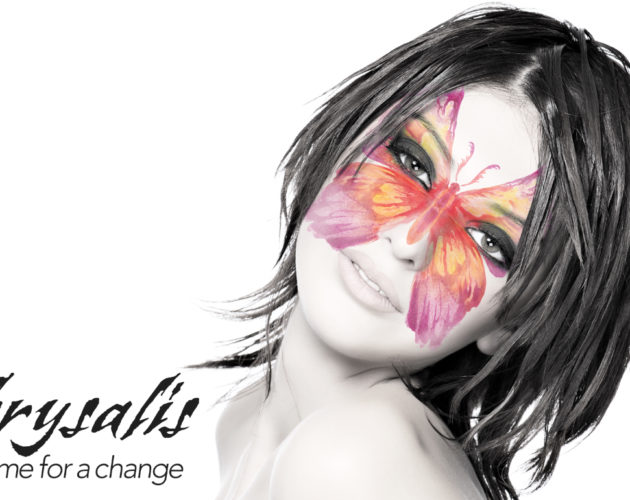
EffectsPhotoshopQuick Tips Hi-key fun How about a little hi-key fun… Let’s start with a simple color portrait. Now you will want to click on the Adjustment Layer at the ... Aaron Westgate January 27, 2016 2
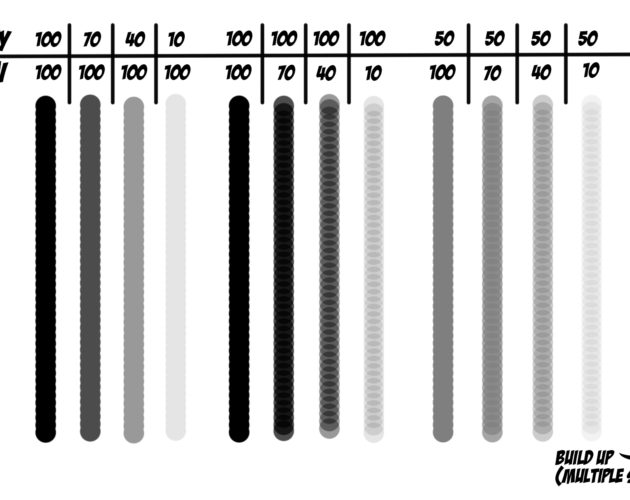
Tools Flow vs. Opacity Do you know the difference between the Opacity and Flow sliders when using the paintbrush tool? Here is a quick illustration to show what is ... Aaron Westgate January 20, 2016 0
PhotoshopQuick Tips Puppet Master So here’s is a fun little project you can do with your kids or really anyone that you may want to control…ahem, I mean impress. ... January 13, 2016 0
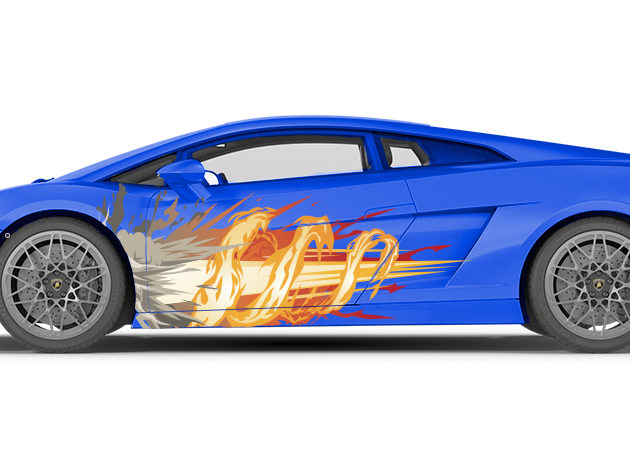
PhotoshopQuick Tips Car details Ok, I admit it… I have been hooked on playing Forza 6 on the Xbox over the Christmas Holidays and part of the fun is ... January 6, 2016 1
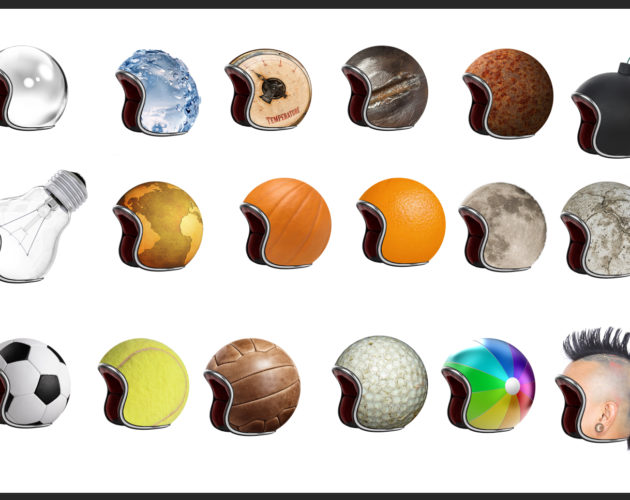
Photoshop Helmet Head So here is a little fun thing to play around with… I did it with motorcycle helmets, but you could easily do the same for ... December 9, 2015 0
EffectsLayersPhotoshop What the heck is Blend if? In the Layers Styles panel at the bottom of the first tab “Blending Options” is one of the unsung heroes of Photoshop that gets overlooked ... December 2, 2015 2
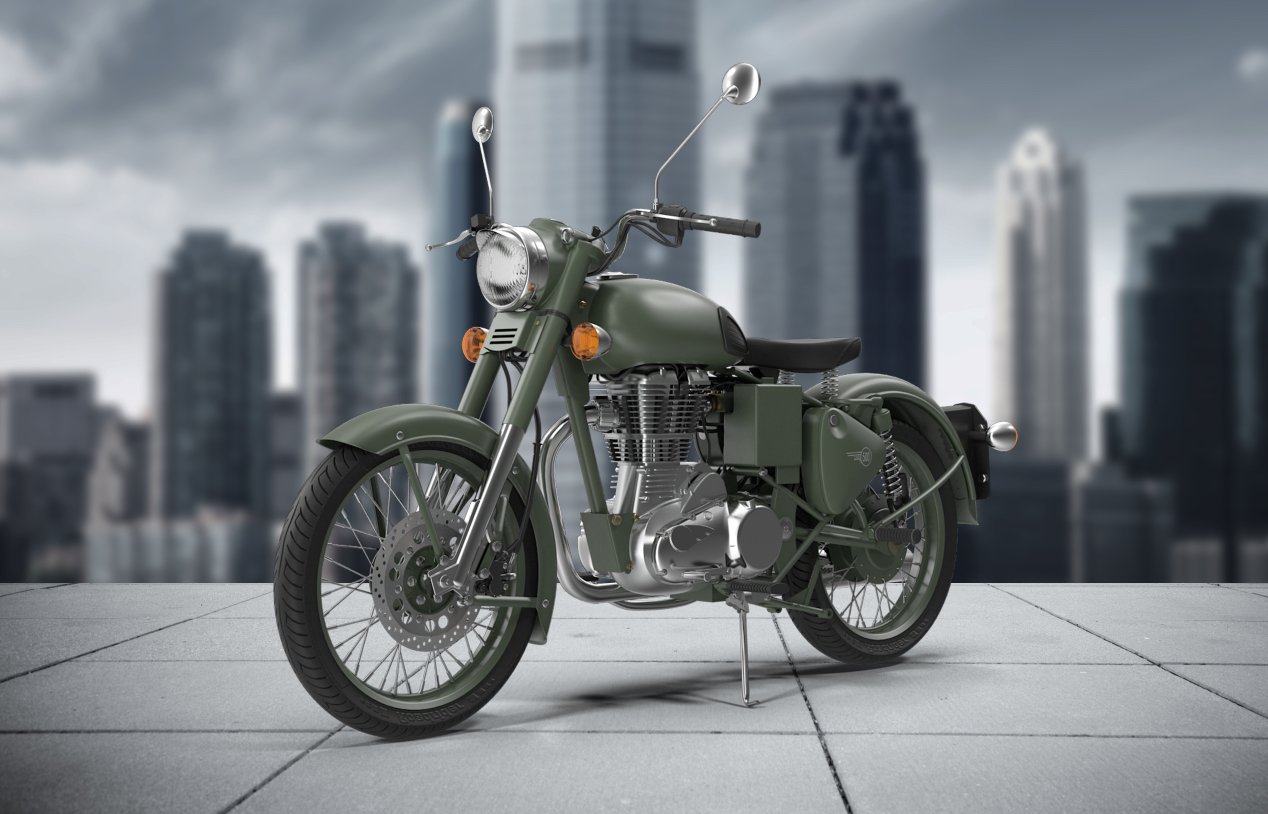
EffectsPhotoshopQuick Tips Quick Production Backdrop One challenge that designers have is how to showcase their companies product in a simple but effective way. This is a great way to quickly ... November 11, 2015 0
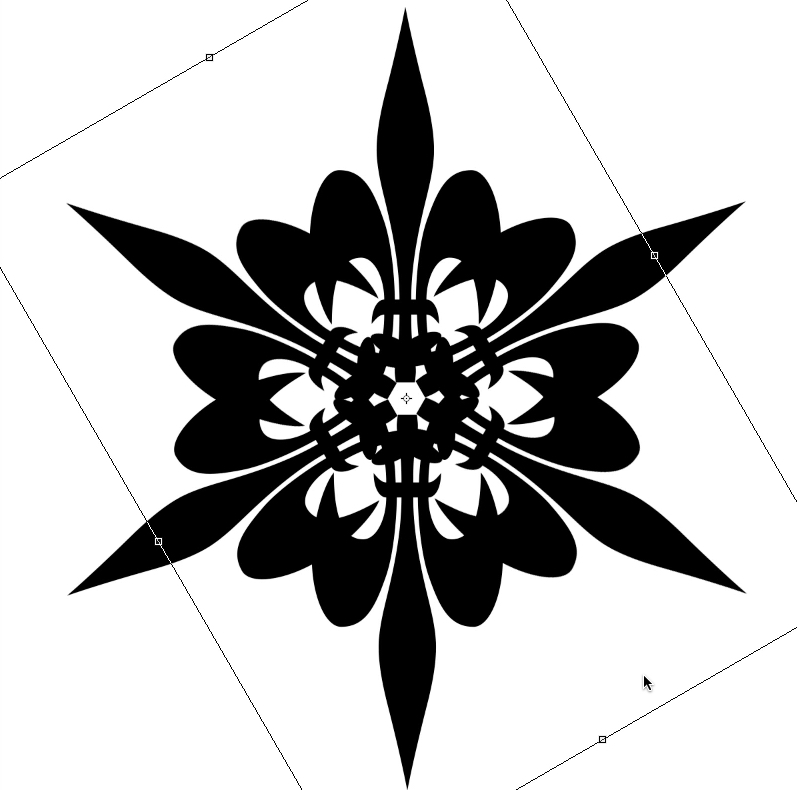
EffectsPhotoshop Let is snow You will want to start out with a new document… size it according to your needs… I tend to make them fairly large so for ... November 4, 2015 2