Sponsored by the National Association of Photoshop Professionals. Learn More
Continue exploring the possibilities with Photoshop’s new 3D tools. Continue reading
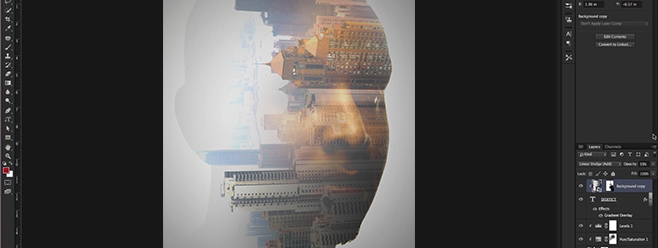
Use Photoshop’s new 3D tools to create some dazzling background effects. Continue reading
In the second part of this tutorial, Corey finishes creating this illustration of a striking match. If you want to follow along with this tutorial, click here to download the … Continue reading
In this two part tutorial we are going to illustrate a close-up of a match strike from scratch in Photoshop. Continue reading
In this tutorial, Corey not only creates the raindrops, but also the splashes that are formed with the raindrops hit the hands.
Use a series of selections, gradients and colors to create this surf-inspired design with a retro theme.
Learn helpful tips and tricks in photoshop while making an a ad inspired by football season.
Inspired by the new Tron clip released this week. Corey uses Vanishing Point to create a retro Tron effect based on the original 1980′s version.
Summer’s not over yet. Corey has chosen the logo from the new movie G-Force to recreate for this week’s tutorial. Continue reading
Use Photoshop CS6 to create selective softening effects using the new on-screen Blur Filters. Mix and match among the three filters for a variety of depth-of-field and tilt-shift effects. Continue reading
This week Corey shows you how to take simple vector shapes and gives them life with 3D in Photoshop CS6. Using simple extrusions and lighting effects you can achieve a level of hyper-realism you never could before. Continue reading
Make your subject of your photograph stand out using dark edge vignettes. Continue reading
Lesa explores the new Content Aware Move tool in Photoshop CS6. Continue reading
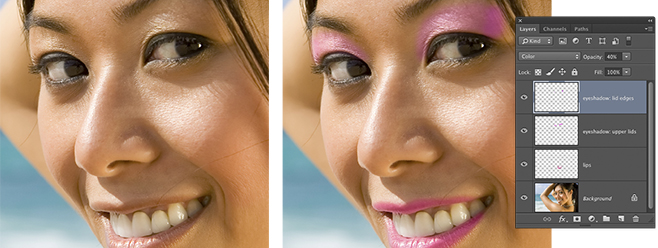
Photo Retouch
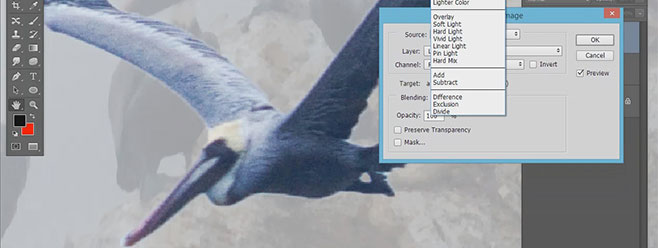
Extended Definition ProcessingIf you have a multilayer composition and you
want to apply an effect to all the layers at once, don't flatten the layers--use a composite layer instead. Hide the layers you want excluded, and press Shift-Command-Option-E (PC: Shift-Ctrl-Alt-E). A new layer will be created at the top containing a merged copy of all the visible layers.
Another option is to create a new layer at the top of the stack and make it active. Command-click (PC: Ctrl-click) each layer you want to include to make those layers active, as well. Press Option-Command-E (PC: Alt-Ctrl-E).
by Colin Smith